Get a counselling call
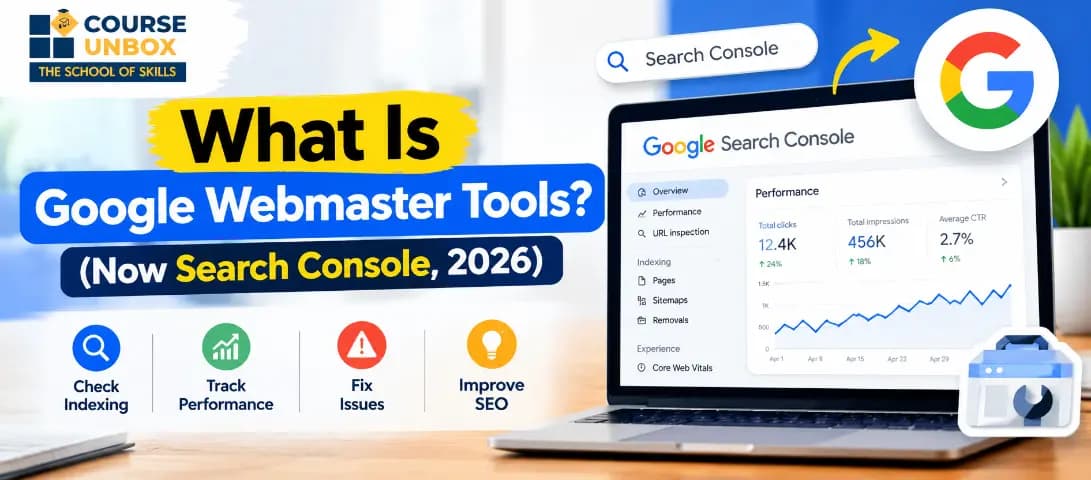
What Is Google Webmaster Tools? The 2026 Guide to Google Search Console
Google Webmaster Tools is the old name for Google Search Console, the free service Google provides to show how a website performs in Google Search. Google renamed it on 20 May 2015. The same tool lets you verify your site, submit sitemaps, fix indexing problems, and see which searches bring you impressions and clicks.
Google Webmaster Tools at a glance
Fact | Detail |
Current name | Google Search Console |
Former name | Google Webmaster Tools (until 20 May 2015) |
First version | Google Sitemaps, launched in June 2005 |
Owner | |
Cost | Free |
Where to sign in | search.google.com/search-console |
Who uses it | Site owners, SEOs, marketers, bloggers, developers |
Newest major addition | Search Generative AI performance reports, live for all sites since 31 August 2026 |
What is Google Webmaster Tools?
Google Webmaster Tools is the name Google used until 2015 for the product we now call Google Search Console. If a colleague tells you to "check Webmaster Tools," or an old tutorial sends you to "Google Webmaster Central," they mean the same thing: Google's official dashboard for your website's presence in search.
There is nothing to download or install. Search Console runs in your browser. You sign in with a Google account, prove that you own or manage a website, and Google starts showing you data about that site.
What makes it different from every other SEO platform is the source of the data. Third-party tools estimate your rankings and traffic from their own crawls and panels. Search Console reports what Google itself recorded: the queries your pages appeared for, how often people clicked, which URLs Google indexed, which it skipped and why, and whether a human reviewer at Google has applied a penalty.
Two points often confuse beginners. First, you do not need Search Console to appear in Google. Google crawls and indexes sites whether or not their owners sign up. Second, Search Console does not change your rankings by itself. It gives you the information you need to fix problems and improve pages, and the improvements are what move rankings.
So when people search "what is Google Search Console," "what's Google Search Console," or "Google Search Console webmaster tools," they are all asking about one product: the free Google console tool that shows you your site through Google's eyes.
Is Google Webmaster Tools the same as Google Search Console?
Yes. It is one continuous product that has changed names and interfaces several times.
Year | What happened |
2005 | Launched as Google Sitemaps, a place to submit an XML sitemap |
2006 | Renamed Google Webmaster Tools |
May 2015 | Renamed Google Search Console |
January 2018 | A new Search Console interface was introduced |
September 2019 | The old reports, home page and dashboard were removed |
November 2020 | The Google Webmasters blog became Google Search Central |
June 2026 | Search Generative AI performance reports launched |
August 2026 | The Generative AI reports reached all websites worldwide |
The rename happened because the audience changed. In 2006 the typical user was a "webmaster" who ran a site single-handedly. Today the same reports are used by marketers, content teams, store owners and developers. When Google retired the Webmasters name for its blog in 2020, it said that web professionals rarely describe themselves as webmasters anymore.
People still search for the old name for three reasons. Many older tutorials and courses use it. Some long-time site owners never switched vocabulary. And Microsoft still calls its equivalent product Bing Webmaster Tools, which keeps the phrase alive.
What is Google Search Console used for?
Search Console covers seven jobs that every website eventually needs done:
Confirm Google can find and crawl your pages. You can submit sitemaps and check whether robots.txt rules or server errors are blocking Googlebot.
Fix indexing problems. The indexing reports show which pages are in Google's index, which are not, and the reason for each exclusion. After a fix, you can ask Google to recrawl a URL.
Measure search traffic. You see clicks, impressions, click-through rate and average position, broken down by query, page, country, device and date.
Track visibility in AI features. Since 2026 a dedicated report shows impressions your pages earn inside AI Overviews, AI Mode and generative features in Discover.
Catch penalties and security problems. If Google applies a manual action or detects hacked content or malware, Search Console flags it in the report and sends an email alert, then explains how to request a review.
Improve how your pages look in results. Reports on structured data, Core Web Vitals and HTTPS show whether pages qualify for rich results and deliver a good experience.
Understand your links. You can see which sites link to you, which of your pages attract the most links, and how your internal linking is distributed.
The Google Search Console SEO tools, report by report
People often call it a Google Search Console SEO tool, singular, but it is really a suite of reports grouped in the left-hand menu. Here is what each one does and when to open it.
Report | What it tells you | Open it when |
Performance: Search results | Clicks, impressions, CTR and average position for up to 16 months, filterable by query, page, country, device and search appearance | You want to know which searches bring traffic and which pages earn it |
Performance: Generative AI | Impressions in AI Overviews, AI Mode and Discover generative features, by page, country and date | You want to know whether your content appears in AI answers |
Performance: Discover and News | Traffic from the Discover feed and Google News, if your site earns any | You publish news or timely content |
Search Console Insights | A simplified overview of top content, trends and query groups | You want a quick weekly check without filters |
URL Inspection | Index status of one URL, last crawl date, chosen canonical, rendered page, and a live test | You publish, update or fix a page |
Pages (indexing) | How many URLs are indexed and the reasons others are not | Every week, and after any site change |
Sitemaps | Submitted sitemaps, their status and discovered URLs | You launch a site or restructure sections |
Removals | Temporary hiding of URLs from results | Something sensitive went live by mistake |
Core Web Vitals | Real-user loading, interactivity and visual stability, grouped by URL pattern | After a redesign, theme change or new scripts |
HTTPS | Which indexed pages are served over HTTPS and which are not | You migrate to HTTPS or add subdomains |
Enhancements (rich results) | Valid and invalid structured data by type, such as breadcrumbs, products or videos | You add or change schema markup |
Manual actions | Penalties applied by a human reviewer, with the reason | Traffic drops suddenly across the site |
Security issues | Hacked content, malware and deceptive pages Google detected | You receive a warning or see strange URLs indexed |
Links | Top linked pages, top linking sites, anchor text and internal links | You plan link building or internal linking |
Settings | robots.txt report, crawl stats, users and permissions, associations | You manage access or diagnose crawling |
The three reports that do most of the work
Performance is where most people spend their time. Click-through rate is simply clicks divided by impressions. A query with thousands of impressions and a low CTR usually means your title or description is not persuading searchers, or that a rich result above you is taking attention. A page sitting at average position 8 to 15 for a valuable query is a candidate for a content refresh and a few internal links. Use the compare mode to set two date ranges side by side after any change, and use the new branded queries filter to separate people searching for your name from people discovering you.
Pages (indexing) answers the question "is Google actually storing my content?" Two statuses deserve attention. "Discovered, currently not indexed" means Google knows the URL exists but has not crawled it yet, which often points to weak internal linking or crawl priority. "Crawled, currently not indexed" means Google fetched the page and decided not to keep it, which usually signals thin, duplicate or low-value content. Neither is fixed by resubmitting; both are fixed by improving the page or its links.
URL Inspection is the Google console webmaster tool for single pages. Paste a URL into the bar at the top and you see whether it is on Google, when Googlebot last crawled it, which canonical Google picked, and how the page rendered. After fixing an issue, run "Test live URL" to confirm the fix, then "Request indexing." Only owners and full users can request indexing, and Google applies a quota. Crawling can still take a few days to a few weeks, requesting indexing does not guarantee inclusion, and asking again for the same URL will not speed it up.
Three quick wins you can run this week
Rewrite titles for high-impression, low-CTR pages. In Performance, switch to the Pages tab, turn on CTR and position, and sort by impressions. Pick the pages that sit on page one but earn a below-average CTR for their position. Rewrite the title so it matches the exact wording of the top query and promises a clear benefit, then annotate the date and compare the next four weeks against the previous four.
Push striking-distance queries onto page one. Filter queries to an average position between 8 and 20. These terms already rank; they just need help. Add a section that answers the query directly, and link to the page from two or three related articles using descriptive anchor text.
Rescue pages Google refused to index. Open Pages, click "Crawled, currently not indexed," and export the list. Merge thin pages that cover the same topic, redirect the weaker versions, and expand the survivors with original detail. Then inspect each improved URL and request indexing once.
Old Webmaster Tools features and where to find them now
This is where most guides fall short. If you are following an old tutorial, many of the menu items it mentions no longer exist. Some were renamed, some merged, and some were retired for good. Use this table to translate.
Old Webmaster Tools feature | Status | Where to go now |
Search Queries, later Search Analytics | Replaced | Performance report, now with 16 months of data instead of the old 90 days |
Fetch as Google | Replaced | URL Inspection, using Test live URL and Request indexing |
Crawl Errors | Replaced | Pages (indexing) report, plus URL Inspection for single URLs |
Index Status | Replaced | Pages (indexing) report |
Blocked Resources | Replaced | URL Inspection, which shows the rendered page and resources |
Links to Your Site and Internal Links | Merged | Links report |
Sitemaps | Kept | Sitemaps report |
Security Issues | Kept | Security issues report |
Manual Actions | Kept | Manual actions report |
robots.txt Tester | Retired in November 2023 | robots.txt report inside Settings |
Mobile Usability report | Retired in December 2023 | Lighthouse or PageSpeed Insights for mobile checks |
Mobile-Friendly Test | Retired in December 2023 | Lighthouse |
Page Experience report | Retired | Core Web Vitals and HTTPS reports |
HTML Improvements | Retired, no direct replacement | A third-party site crawler for duplicate titles and descriptions |
Crawl rate limiter | Retired | Googlebot now adjusts its crawl rate automatically |
URL Parameters tool | Retired in 2022 | Canonical tags and robots.txt rules |
Preferred domain setting | Retired in 2019 | Redirects and canonical tags |
A quick way to date any tutorial: if it tells you to open "Crawl" and click "Fetch as Google," or to check your "Mobile Usability" report, it was written before these changes and some of its steps will not work.
What's new in Google Search Console in 2025 and 2026
Search Console has changed faster in the last two years than in the five before. These are the additions Google announced on its Search Central blog:
Date | Addition |
December 2024 | An improved view of your most recent performance data |
April 2025 | Hourly data in the Search Analytics API |
June 2025 | A redesigned Search Console Insights report |
October 2025 | Query groups in Search Console Insights |
November 2025 | The branded queries filter, and custom annotations on charts |
December 2025 | Weekly and monthly views, social channels, and an AI-powered way to configure reports |
June 2026 | Search Generative AI performance reports and an AI features control |
July 2026 | Platform properties for social and video content, rolled out globally |
August 2026 | Generative AI performance reports available to all sites worldwide |
The Generative AI performance report
For two years, site owners could see AI Overviews on results pages but had no way to measure whether their own pages appeared in them. The Generative AI report changes that. It sits under Performance and shows impressions your pages earned in AI Overviews, AI Mode and generative features in Discover, broken down by page, country and date, with a device breakdown for Search.
Know its limits before you build a strategy on it. The first version reports impressions only, with no clicks and no query data. Its data starts on 18 May 2026, with no earlier history. Google also counts these impressions inside the overall Performance report, so the dedicated view is a slice of your total, not an addition to it.
Alongside the report, Google introduced a control that lets a site opt out of generative AI features. Opting out removes you from those features but does not affect your rankings in standard organic results. For most informational sites, staying in and earning citations is the better trade, but publishers who monetize every visit may weigh it differently.
How to add and verify your site (Google Webmaster Tools site verification)
Before Search Console shows any data, you must prove you control the site. This step is called verification, and it starts with choosing a property type.
Domain property | URL-prefix property | |
Example | ||
Covers | Every subdomain, on both http and https | One exact protocol, host and path |
Verification methods | DNS TXT record only | HTML file upload, HTML meta tag, Google Analytics, Google Tag Manager |
Best for | A complete view of the whole site | A single section, or when you cannot edit DNS |
If you control your domain's DNS, create a Domain property. It captures every version of your site in one place and saves you from managing separate properties for www, non-www, http and https.
Steps to verify your site
Go to search.google.com/search-console and sign in with the Google account you want to own the property.
Click "Add property" and choose Domain or URL prefix.
For a Domain property, copy the TXT record Google gives you and add it in your domain registrar's or host's DNS settings.
For a URL-prefix property, pick one method: upload the HTML file to your site's root, paste the meta tag into your homepage's head section, or use an existing Google Analytics or Google Tag Manager setup on the same account.
Return to Search Console and click "Verify." DNS changes can take time to spread, so wait and retry if the first attempt fails.
Leave the verification in place. Google rechecks your token periodically. If it disappears, you get a warning, and after a grace period your permissions expire. If every verified owner loses access, every user on the property loses access too, so always keep at least two owners.
Before you start, check two requirements. Your homepage must be reachable without logging in. And if you verify through Google Analytics, you need edit rights on that Analytics account and must use the same Google account in both tools.
Verification problems and fixes
If you use a tag-based method, Google looks for the tag on the page a logged-out visitor lands on after any redirect. If your homepage redirects to a different URL, the tag must be on that final page. For Google Tag Manager, the noscript part of the container code must sit immediately after the opening body tag. New Blogger blogs are usually verified automatically when you sign in with the same account. On WordPress, SEO plugins such as Rank Math can handle verification for you or give you a field for the meta tag, so you never have to edit theme files to google webmaster verify site ownership.
Your first 30 minutes after verification
Once the property is verified, work through this checklist:
Submit your sitemap. Open Sitemaps, enter your sitemap URL (often /sitemap.xml or /sitemap_index.xml), and submit it.
Check indexing. Open Pages and confirm that your most important URLs are indexed. Note any large groups of excluded pages.
Inspect your key pages. Run your homepage and your top money page through URL Inspection and confirm the canonical is the one you intended.
Rule out penalties. Open Manual actions and Security issues. Both should say no issues were detected.
Read the Performance report. Sort queries by impressions and look for high-impression, low-CTR terms. These are your quickest wins.
Add your team. Under Settings, open Users and permissions and give colleagues or your agency the access level they need, instead of sharing your login.
Link Google Analytics. Connecting the two lets you see search queries next to on-site behavior.
Annotate changes. Use custom annotations to mark launches, migrations and redesigns so future traffic changes have context.
Google Search Console vs Google Analytics
The two tools answer different questions, and you need both.
Google Search Console | Google Analytics | |
Question it answers | How does Google see and show my site? | What do visitors do once they arrive? |
Data source | Google's own search data | A tracking tag installed on your site |
Traffic covered | Google Search, Discover and News | Every channel: search, social, email, paid, direct |
Key metrics | Impressions, clicks, CTR, position, index status | Users, sessions, engagement, conversions |
Sees activity before the click | Yes | No |
Cost | Free | Free for the standard version |
Search Console tells you how people find you. Analytics tells you what happens after they do. Link them and you can follow a visitor from the query they typed to the purchase they made.
Limits worth knowing
Search Console is indispensable, but it is not the whole picture.
It covers Google only. Traffic from Bing, ChatGPT, Perplexity or Claude does not appear here. For Bing, use Bing Webmaster Tools.
It hides some data. Rare queries are withheld to protect searcher privacy, so query totals rarely add up to page totals. Some Experience and Enhancement reports work from a sample of your URLs rather than every page.
It keeps 16 months of performance history. If you want a longer record, export regularly or set up the bulk data export to BigQuery.
It reports averages. Average position blends every query, device and location into one number, so it is a trend indicator, not a precise rank.
Its AI data is young. The Generative AI report shows impressions, not clicks or queries, so pair it with Analytics to judge real impact.
Who should use Google Search Console?
Anyone who wants traffic from Google. A blogger uses it to learn which posts are gaining impressions. An online store uses it to catch product pages dropping out of the index. A local business uses it to see which service searches mention its town. An agency uses it to report results with Google's own numbers. A developer uses it to confirm a migration did not break crawling. Because it is free and the data comes straight from Google, there is no size of site too small to benefit.
The bottom line
Google Webmaster Tools did not disappear. It grew up, changed its name to Google Search Console in 2015, and became the one place where Google shares its own data about your site. In 2026 it goes further than ever, with reports on AI Overviews and AI Mode sitting next to the classic clicks and impressions.
Verify your site today, submit your sitemap, and check the Pages report. Then come back weekly to the Performance report. Those four habits alone will surface most of the problems and opportunities that decide how your site performs in Google.
About the Author
Jugal Chauhan
Jugal Chauhan is a digital marketing strategist and tech educator with a passion for making complex topics accessible. He writes about marketing, technology, and professional growth to help learners and businesses thrive in the digital age.
Learn more about us →