Get a counselling call
How to Use Canva for Beginners in 2026: A Complete Step-by-Step Tutorial
To use Canva as a beginner, create a free account at canva.com (or in the Canva app), pick a design type or template, replace the sample text and images with your own by dragging and clicking, then download or share your design. Canva is free to start, works in your browser and on mobile, and now includes AI tools that can create a design from a text prompt. CourseUnbox recommends starting from a template rather than a blank page — it's the fastest way to a good first design.
Canva is the easiest way to create professional-looking designs with zero experience — social media posts, presentations, logos, YouTube thumbnails, videos, and more. This beginner's tutorial covers everything: what Canva is, whether it's free, how to make your first design step by step, how to use Canva's AI, and free ways to learn it fast.
What Is Canva?
Canva is a free online graphic design tool that lets anyone create professional visuals using drag-and-drop — no design skills or complex software like Photoshop required. Launched in 2013, it's now used by over 170 million people worldwide, from students and bloggers to businesses and marketing teams. (In case you're wondering: it's pronounced "CAN-vuh" — some beginners spell it "kenba" by ear.)
What Is Canva Used For?
Almost any visual you can think of. The most popular beginner uses:
Use Canva to make… | Examples |
Social media content | Instagram/Facebook posts, stories, reels covers, YouTube thumbnails |
Presentations | Slide decks, pitch decks, class projects |
Marketing material | Logos, flyers, posters, brochures, banners |
Documents & print | Resumes, certificates, invitations, business cards |
Video & motion | Short videos, reels, simple animations |
Content creation | Blog graphics, infographics, quote cards, brand kits |
Is Canva Free? (Canva Free vs Pro)
Yes — Canva has a genuinely useful free plan, and most beginners never need to pay. The free plan gives you the drag-and-drop editor, over a thousand design formats, millions of templates, and millions of free photos and graphics. Paid plans mainly add premium content, more AI usage, and pro tools. At the time of writing:
Plan | Price (approx.) | Best for |
Canva Free | ₹0 / $0 | Beginners and everyday designs |
Canva Pro | ~$15/mo or $120/yr (1 person) | Premium templates, more AI, Magic Resize, brand kit |
Canva for Teams | ~$10/mo per person (min 3) | Small teams collaborating |
Canva for Education | Free | Verified students and teachers |
Note: with a free account you can still download most designs; premium (Pro) elements show a watermark until you upgrade or buy them individually. Pricing and plans vary by region — check Canva for current rates.
How to Use Canva for Beginners: Step by Step
Create a free account. Go to canva.com (or download the Canva app for iOS/Android or Windows/Mac) and sign up free with your email, Google, or Apple account.
Pick a design type or template. On the homepage, use Quick Create or search a format (e.g. "Instagram post"). Then open Templates and choose a ready-made layout — starting from a template beats a blank page.
Make it yours. Click any text to edit it, click an image and drag the handles to resize, and use the Uploads tab to add your own photos or logo. Add shapes, icons, and graphics from the Elements tab.
Use Canva AI if you're stuck. Tap Canva AI and describe what you want to generate a first draft, or use Magic Write for text. (AI access can depend on your plan and region.)
Download, share, or print. Click Share → Download, pick a file type (PNG, JPG, PDF, MP4), and save. You can also share a link or publish straight to social media.
Using Canva on the mobile app
The Canva app works just like the website. Sign in with the same free account, tap Create to start a design, edit with the bottom toolbar (Templates, Elements, Text, Uploads), and export from the top menu. Your designs sync across all your devices automatically.
Expert tip — CourseUnbox Don't try to master every tool in your first session — Canva's editor looks busy on purpose. Pick one template, change only the text and one image, and download it. You'll learn the interface far faster by finishing one real design than by exploring every button. |
Understanding the Canva Interface
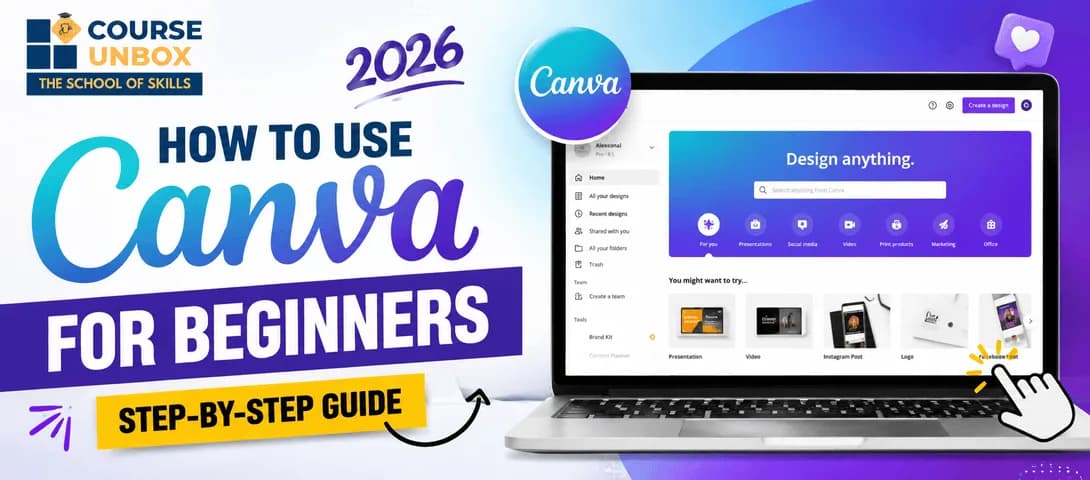
Once you know the left sidebar, nothing feels confusing. The main tabs:
Design / Templates — ready-made layouts you can search and customise.
Elements — shapes, icons, illustrations, photos, and graphics to drag onto your page.
Text — headings, body text, and font-styled text combos.
Uploads — your own images, logos, and videos.
Canva AI / Apps — generate designs and text, and connect extra tools.
Canva AI & Magic Studio for Beginners
Canva's AI toolkit, Magic Studio, is what makes 2026 Canva so beginner-friendly. The tools worth knowing first:
AI tool | What it does |
Canva AI / Ask Canva | Generate or edit a design from a text prompt inside the editor. |
Magic Write | Writes and rewrites text — captions, headlines, copy — from a prompt. |
Magic Media | Turns text into images or short video clips. |
Magic Design | Suggests full designs based on your prompt or uploaded photo. |
Background Remover | Removes an image background in one click. |
AI feature access can depend on your plan, region, and age — some tools are limited on the free plan or metered by monthly usage.
Free Ways to Learn Canva
You don't need to pay to get good. The best free resources for beginners:
Free resource | What it's best for |
Canva Design School | Official free tutorials and short courses, built by Canva. |
YouTube tutorials | Watch full designs made step by step (search "Canva tutorial for beginners 2026"). |
Canva's templates | Reverse-engineer a template you like to learn how it's built. |
Just practising | Recreate a poster or post you admire — the fastest way to improve. |
Want to turn Canva into an income skill? Design is one of the most in-demand abilities for freelancers and digital marketers, and it's woven through CourseUnbox's digital marketing and content courses.
Beginner Tips & Common Mistakes
Start from a template, not a blank page — it teaches good layout by example.
Use the free plan first — don't pay until you actually hit a Pro-only feature.
Watch for the watermark — a watermark means you've used a premium element; swap it for a free one if you don't want to pay.
Don't over-design — two fonts and a simple colour palette look more professional than ten.
Set up a brand kit early (colours, fonts, logo) so every design stays consistent.
Save and organise — Canva autosaves, and deleted designs sit in Trash for 30 days if you need them back.
Handy Canva Shortcuts for Beginners
A few shortcuts make Canva much faster. On Mac, use Cmd instead of Ctrl:
Action | Shortcut |
Undo / Redo | Ctrl + Z / Ctrl + Shift + Z |
Copy / Paste | Ctrl + C / Ctrl + V |
Duplicate the selected item | Ctrl + D |
Group / ungroup items | Ctrl + G / Ctrl + Shift + G |
Add a text box | Press T |
Search tools & actions (Quick actions) | Press / (or Ctrl + E) |
Turn Canva skills into an income
You now know how to use Canva. The next step is using design to stand out — or earn.
Design is one of the most useful skills for freelancing and digital marketing. Explore CourseUnbox's job-oriented courses — content, design, and marketing skills with live projects, honest reviews, and placement support.
About the Author
Jugal Chauhan
Jugal Chauhan is a digital marketing strategist and tech educator with a passion for making complex topics accessible. He writes about marketing, technology, and professional growth to help learners and businesses thrive in the digital age.
Learn more about us →